


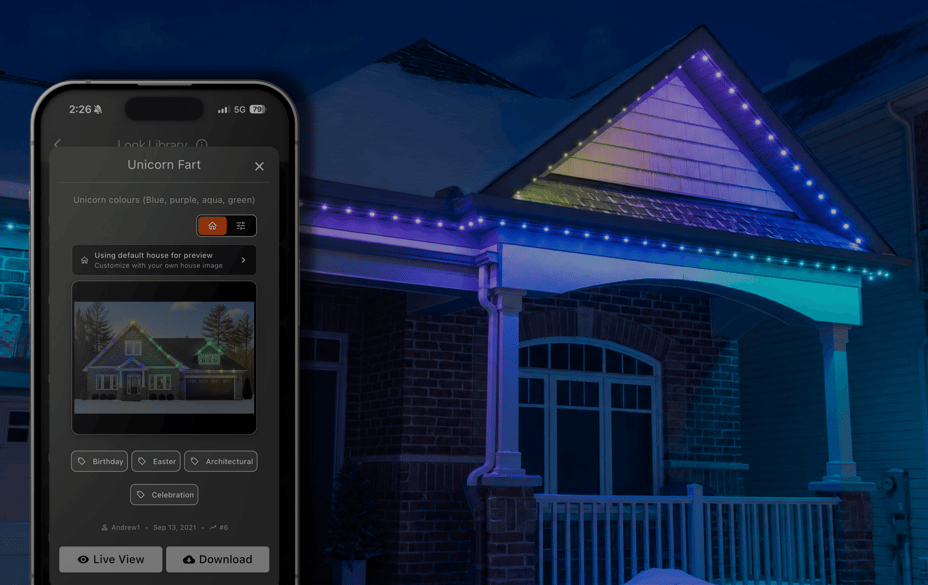
Preview Architectural Lighting Scenes on Your Home
One of the best parts of permanent architectural lighting is choosing the right Look for your home. In the Celebright app, a Look is a lighting preset made up of colors, patterns, and/or animations, giving you an easy way to change the feeling of your home for everyday evenings, holidays, celebrations, and everything in between.
But with so many possibilities in the Look Library, how do you decide which one feels right? Will it complement your architecture? Enhance your curb appeal? Suit the season? Create the atmosphere you had in mind?
Enter Celebright™ Preview.
Preview lets you see how any Look from the Celebright Look Library will appear on a photo of your own home before applying it to your permanent lighting system. Simply upload a photo, mark where your lights are installed, and explore different Looks with confidence, all within the Celebright app.
See the Look Before You Apply It
Think of Preview akin to holding a paint swatch up to your exterior before choosing the final color.
Once a Look is applied to your home, it becomes part of the overall lighting Scene: the complete visual effect created across your exterior, whether it is one bold Look or a combination of Looks working together using Zones.
It is a simple feature, but it solves a real moment of hesitation: Will this look right on my home?
A Simple Setup Inside the Celebright App
Preview is designed to feel easy, not technical. Everything happens directly inside the Celebright app, so you can set up your home image once and start exploring scenes with more confidence.
To set up Preview:
- 1. Open the Celebright app and go to your device settings.
- 2. Upload a photo of your home.
- 3. Draw lines or curves where your Celebright lights are installed.
- 4. Save your setup.
- 5. Browse the Look Library, select a Scene, tap the three dots icon to see the Scene on your home photo.
If you have not uploaded your own photo yet, the app can show a default house so you can still explore the feature.
Helpful for Everyday Configuration
Preview is especially useful when you want your home to feel just right without adding extra steps to your day.
Maybe guests are on the way. Maybe it is cold or raining outside. Maybe you are trying to choose between a warm architectural lighting scene for an ordinary evening and a more colorful look for a celebration.
With Preview, you can compare options from inside the app, from the comfort of your home, before applying them to your permanent outdoor lighting system. It makes choosing faster, easier, and more connected to real life.
A Stronger Way for Dealers to Show the Possibility
Preview also gives Celebright Dealers a simple visual tool to help customers understand what permanent lighting can do.
Instead of describing how a scene might look, Dealers can show homeowners how colors and patterns may appear on a familiar home exterior. That makes conversations about architectural lighting, seasonal scenes, and permanent holiday lights more tangible.
For homeowners who are still exploring options, Preview can help turn possibility into confidence.
Choose With More Confidence
Celebright is designed to help homes feel expressive, elevated, and ready for the moments that matter. Preview adds another layer to that experience by helping you choose the scene before your lights change outside.
It does not replace the feeling of seeing your home light up in real life. It simply makes getting there easier. You can explore more freely, compare scenes faster, and choose the atmosphere that feels right.
Ready to find the scene that fits your space? Open the Celebright app and explore Preview the next time you browse the Look Library.
1. Can I preview permanent holiday lights before applying them?
Yes. Preview works with Look Library scenes, including seasonal and holiday looks, so you can see how permanent holiday lights may feel on your home before applying a pattern.
2. Does Preview work for permanent outdoor lighting on any home?
Preview works with any uploaded home photo. If you have not uploaded your own yet, the app can show a default house so you can still explore how a permanent outdoor lighting scene may look.
3. How is Preview different from imagining the scene?
Instead of guessing, Preview shows colours and patterns from the Look Library directly on a photo of your architectural lighting setup. You can choose based on what you see, not just what you picture.
4. How do I access the Preview feature?
Make sure you're using the latest version of the Celebright™ app and that your device firmware is up to date. You can check for firmware updates in Device Settings within the app.
Leave a Reply